

Displaying Expressive GIFs on ESP32 with LVGL
A practical guide to animated GIF expressions in ESP32 firmware: convert assets, enable LV_USE_GIF, store files, and render with lv_gif.
Share
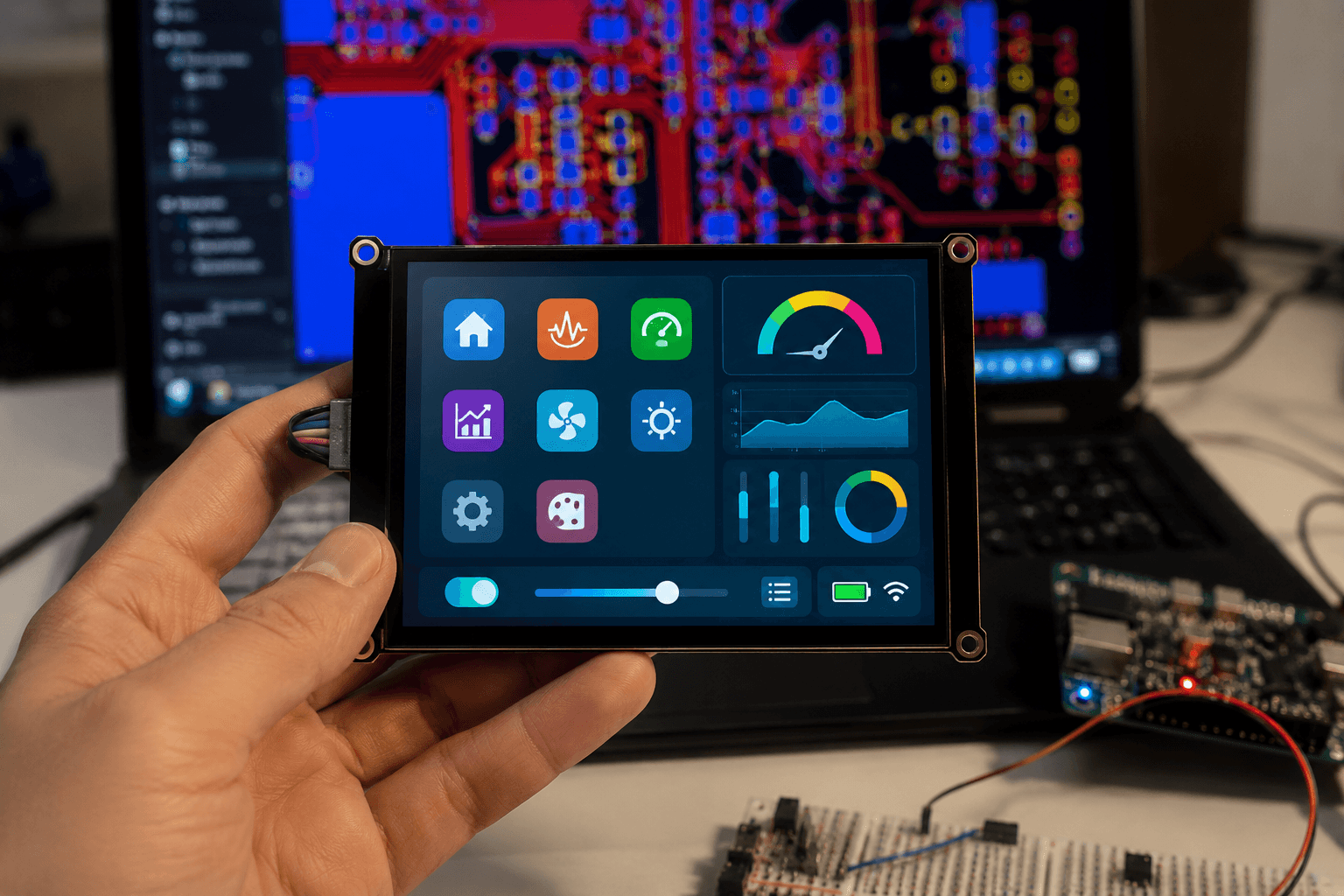
In this guide, I will walk you from preparing a GIF to checking memory use and playing the animation reliably on an ESP32.
GIFs are a quick way to give embedded interfaces a little personality: a happy face, blinking eyes, a thinking state, or a small response when a robot receives a command. With ESP32 and LVGL, the main challenge is not creating the widget. It is preparing the asset carefully and keeping memory use under control.
This note walks through a compact workflow: prepare the GIF, enable the decoder, choose where the asset lives, and display it with lv_gif.
The Basic Flow
For an expression GIF, there are usually two practical paths:
- Convert the GIF into a C array and compile it into the firmware.
- Keep the
.giffile in a filesystem such as SPIFFS, LittleFS, or an SD card, then pass the file path to LVGL.
The first path is simple when you only have a few animations and want everything inside the application binary. The second works better when you have many expressions, want to update assets without rebuilding all firmware, or want to organize GIFs as downloadable packs.
Enable GIF Support in LVGL
In lv_conf.h, enable the GIF widget:
#define LV_USE_GIF 1
According to the LVGL documentation, lv_gif uses a GIF decoder to display animated GIFs. Once the feature is enabled, you can create a widget with lv_gif_create() and set its source with lv_gif_set_src().
Option 1: Embed the GIF as a C Array
If the GIF should ship with the firmware, convert the .gif file into a C asset. A common LVGL workflow is to use the LVGL converter script and keep the image data in raw form:
python ./scripts/LVGLImage.py --cf RAW --ofmt C -o . --name mochi_smile mochi-smile.gif
Then declare and display it:
LV_IMAGE_DECLARE(mochi_smile);

void show_mochi_smile(void)
{
    lv_obj_t * gif = lv_gif_create(lv_screen_active());
    lv_gif_set_color_format(gif, LV_COLOR_FORMAT_RGB565);
    lv_gif_set_src(gif, &mochi_smile);
    lv_obj_center(gif);
}
If the GIF needs transparency, LV_COLOR_FORMAT_ARGB8888 preserves alpha better, but it costs more RAM. On many RGB565 TFT displays, using LV_COLOR_FORMAT_RGB565 can reduce conversion work and is friendlier to ESP32 memory. Call lv_gif_set_color_format() before lv_gif_set_src() so LVGL does not allocate the default framebuffer first and then replace it.
Option 2: Load the GIF from a Filesystem
When the GIF lives in SPIFFS, LittleFS, or an SD card, pass the file path to lv_gif_set_src():
void show_mochi_eyes(void)
{
    lv_obj_t * gif = lv_gif_create(lv_screen_active());
    lv_gif_set_color_format(gif, LV_COLOR_FORMAT_RGB565);
    lv_gif_set_src(gif, "S:/emoji/mochi-eyes.gif");
    lv_obj_center(gif);
}
The important detail is that LVGL must have a matching filesystem driver. Without that driver, the widget cannot open the file even if the path looks correct. In ESP-IDF projects, this usually means mounting the partition and bridging it through lv_fs_drv.
Plan RAM Before Adding More Animations
An animated GIF is not just a small file in flash. LVGL needs RAM for the decoder and the framebuffer for the current frame. The LVGL docs give a useful estimate: roughly 25 kB plus (pixel_size + 1) x width x height bytes.
For a 128x128 GIF:
- RGB565 is roughly
25 kB + 3 x 128 x 128, close to 74 kB. - ARGB8888 is roughly
25 kB + 5 x 128 x 128, above 106 kB.
The exact number depends on your LVGL configuration, heap state, display driver, and other firmware tasks. But the lesson is clear enough: on smaller ESP32 builds, do not start with oversized GIFs.
Preparing Expression GIFs
A simple pipeline for a robot face UI:
- Design or choose GIFs at the actual display area size, such as 128x128 or 240x240.
- Reduce the frame count when the animation does not need to be very smooth.
- Reduce the palette if the visual style allows it.
- Test one GIF at a time before loading a whole expression set.
- Name files by state, such as
idle.gif,happy.gif,thinking.gif, andsleepy.gif.
If you are prototyping a Mochi-style face or a small robot UI, you can start with the emoji GIF sets shared on Nastrotek, such as the Smile 3D Emoji GIF Pack, Eyes Emoji GIF Pack, Pepe Emoji GIF Pack, or Shiba GIF Pack.
A Small Expression-Switching Example
Instead of creating several GIF widgets on top of each other, keep one widget and switch its source based on state:
static lv_obj_t * face_gif;

void face_ui_create(void)
{
    face_gif = lv_gif_create(lv_screen_active());
    lv_gif_set_color_format(face_gif, LV_COLOR_FORMAT_RGB565);
    lv_obj_center(face_gif);
}

void face_ui_set_idle(void)
{
    lv_gif_set_src(face_gif, "S:/emoji/idle.gif");
}

void face_ui_set_happy(void)
{
    lv_gif_set_src(face_gif, "S:/emoji/happy.gif");
}
With C array assets, the idea is the same. The source is an image descriptor pointer instead of a file path.
Common Mistakes
- Forgetting to enable
LV_USE_GIF. - Using a file path before registering an LVGL filesystem driver.
- Choosing a GIF that is too large for the available RAM.
- Using ARGB8888 everywhere even when the display does not need alpha.
- Switching sources from multiple tasks without coordinating with the LVGL task.
- Using GIF dimensions above
LV_GIF_MAX_WIDTHorLV_GIF_MAX_HEIGHTinlv_conf.h.
Conclusion
To display expressive GIFs on ESP32 with LVGL, start small: enable LV_USE_GIF, test one 128x128 GIF, choose between C arrays and filesystem storage, then measure RAM before expanding into a full expression set. Once the pipeline is stable, the Emoji packs on Nastrotek are a fast way to prototype a robot face UI without drawing every animation from scratch.
References
Share
Keep exploring
Read next
Related articles
GIF, PNG, JPG, or a C Array: Which Image Format Fits Your ESP32 Screen?
Compare GIF, PNG, JPG, and C array images for ESP32 displays by flash use, RAM use, decode speed, alpha, animation, and quality.
Designing an Emotion State System for the Mochi Robot
Build a Mochi Robot emotion state machine for idle, listening, talking, happy, sad, thinking, and error states with replaceable animations.
What Is Embedded UI, And Why It Matters
What embedded UI means for small devices, why small screens have small budgets, and why it deserves attention as its own discipline.